Dataspace
The Dataspace View provides a spreadsheet-like interface. You can prepare, organize, calculate, and manage all data in Dashboardx just like using Excel, WPS Spreadsheets. To help beginners get started quickly, this chapter provides an overview of basic operations in the dataspace. If you already have rich experience using spreadsheets and are proficient in managing data with spreadsheets, you can directly jump to Creating Datasets.
On Windows, press `Ctrl` where this page shows `⌘`, and `Ctrl+Shift` where it shows `⌘⇧`.
Data Sources
Copy from spreadsheet applications or create directly
The dataspace supports copying data from spreadsheet applications such as Excel, WPS, Numbers, Google Sheets, and pasting it into the designer, as well as directly importing XLSX/CSV/TSV files (supported since v1.2). This is the fastest and most flexible data import method. Of course, you can also directly create and manage data in the dataspace, with operations completely consistent with the spreadsheet applications you are familiar with.
Pasting Data from Clipboard
- Select data area in the source spreadsheet application (can include header row)
- Copy (
⌘C) - Switch to data perspective in the dataspace or directly open the dataspace view
- Right-click after selecting a cell to activate context menu for pasting or directly use shortcut
⌘V
💡 Tip
When pasting, the system automatically recognizes separators (such as tabs, commas) and attempts to infer the data type of each column (text, numbers, dates, etc.). Pasted data immediately becomes an editable table.
Data Area Specifications
- The first row can serve as column headers (recommended), while also supporting the first column as row headers.
- Supports multi-row headers (can be manually adjusted after pasting).
- Cell content supports text, numbers, dates, logical values.
⚠️ Note
Currently, connecting to databases is not supported. Data can enter the system via clipboard or by importing XLSX/CSV/TSV files (supported since v1.2).
Spreadsheet-style Data Interface
Dashboardx's data management interface completely mimics Excel/WPS spreadsheets, so you'll feel very familiar.
Interface Layout
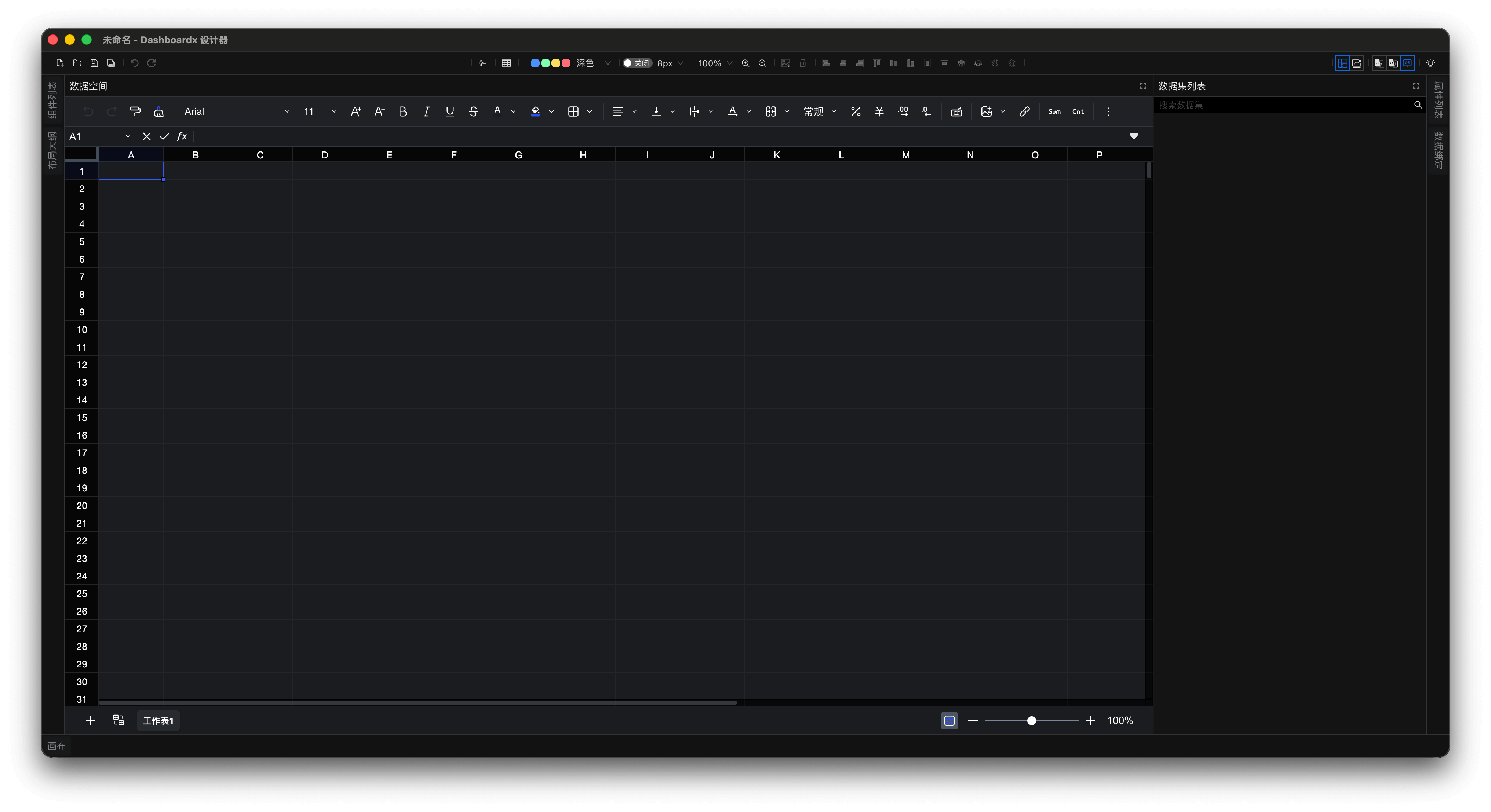
Figure 1: Dataspace View
- Toolbar: Provides all the tool options needed for table operations.
- Formula Bar: Exactly the same as spreadsheet application formula bars, allowing formula input and editing.
- Cells: Double-click to enter edit mode, supports input of formulas, text, numbers.
- Context Menu: Right-click column header to insert/delete/rename/copy columns; right-click row number to insert/delete rows.
💡 Tip
The dataspace view has its own independent toolbar for ease of use.
Basic Table Operations
| Operation | Method |
|---|---|
| Select Column | Click column header |
| Select Row | Click row number |
| Insert Column | Right-click → Insert Column |
| Insert Row | Right-click → Insert Row |
| Delete Column | Right-click → Delete Column |
| Delete Row | Right-click → Delete Row |
| Move Column | Drag column header |
| Move Row | Drag row number |
| Resize Column | Drag column border |
| Resize Row | Drag row border |
| Freeze Panes | View → Freeze Panes |
| Sort Data | Right-click → Sort |
| Multi-select | Shift for continuous, ^ for discontinuous |
| Find & Replace | ⌘F |
| Undo/Redo | ⌘Z / ⌘Y |
Data Editing
- Direct Editing: Double-click any cell or press
F2to edit directly - Formula Bar: Enter formulas in the formula bar at the top
- Fill Handle: Drag the fill handle in the lower-right corner of a cell to copy formulas or data
- Find & Replace:
⌘Fto find,⌘Hto replace - Undo/Redo:
⌘Z/⌘⇧Z
💡 Tip
The dataspace view has its own independent toolbar for ease of use.
Formatting Cells
Data Types
| Type | Description | Example Format |
|---|---|---|
| Text | General text, identifiers, codes | Product Name, ID |
| Number | Numeric values, calculations | 12345, 99.99 |
| Percentage | Percentage values | 15%, 0.25 |
| Currency | Monetary amounts | $1,234.56, ¥100 |
| Date | Dates | 2024-01-15 |
| Time | Times | 14:30:00 |
| DateTime | Combined date and time | 2024-01-15 14:30 |
| Boolean | Logical values (TRUE/FALSE) | TRUE, FALSE |
Number Formatting
- Decimal Places: Set precision for numeric values
- Thousands Separator: Add comma separators for large numbers
- Negative Numbers: Red color or parentheses formatting
- Scientific Notation: Display very large or small numbers
Text Formatting
- Font: Family, size, style (bold, italic, underline)
- Alignment: Horizontal and vertical alignment
- Text Wrap: Automatically wrap text within cells
- Merge Cells: Combine multiple cells into one
💡 Tip
Proper formatting not only improves readability but also helps Dashboardx better infer data types and chart recommendations.
Data Cleaning and Transformation
Common Data Issues and Handling
| Issue | Handling Within Table |
|---|---|
| Blank Cells | Select and directly input values; or use formula =IF(ISBLANK(A1), 0, A1) |
| Text-formatted Numbers | Create new column, use formula =VALUE([Original Column]) |
| Leading/Trailing Spaces | Create new column, use formula =TRIM([Original Column]) |
| Inconsistent Date Formats | Use =DATEVALUE() or =TEXT() to unify formats |
Commonly Used Cleaning Functions
Enter each formula in row 2 of a new column, then fill it down. Column layout of the sample sheet: A=Name, B=City, C=Address, D=Text Number, E=Unit Price, F=Order Date, G=the formula to correct. The four groups below are text cleaning, number conversion, date handling, and error handling.
=TRIM(C2)
=UPPER(B2)
=PROPER(A2)

=VALUE(D2)
=ROUND(E2, 2)

=DATEVALUE("2026/2/12")
=YEAR(F2)
=TEXT(F2, "yyyy-mm-dd")

=IFERROR(G2, "To be filled")
Calculation Fields and Formulas
The dataspace supports Excel-style formula language, currently covering over 500 formulas. The formulas follow standard Excel conventions, and matching functions are suggested as you type them. The following provides a brief introduction to some commonly used formulas. The dataspace supports referencing cell content through cell positions, such as A1, A1:A10, etc., and also supports obtaining references through custom names. We recommend using custom names to obtain references, so that when the reference range is updated, we only need to update the custom name. The custom name interface in the dataspace is shown in the figure:
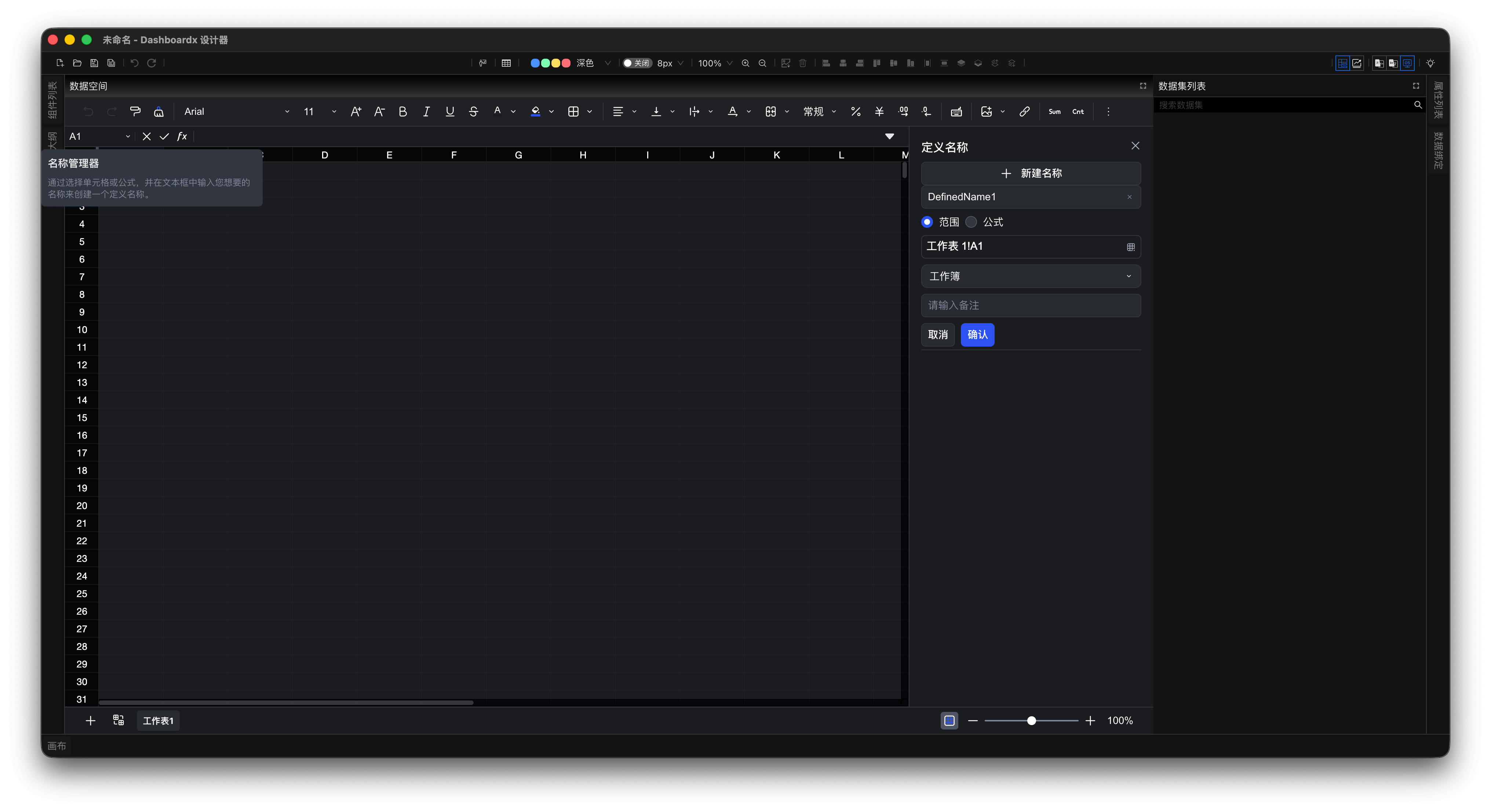
Figure 2: Custom Name Interface
Mathematical Operations
The first three are row-level, entered in row 2 of a new column; the last four aggregate a whole block of data, assumed to occupy rows 2 through 500. Column layout: A=Quantity, B=Unit Price, C=Sales, D=Cost, E=Profit.
=A2 * B2
=C2 - D2
=E2 / C2 * 100
=SUM(C2:C500)
=AVERAGE(B2:B500)
=MAX(A2:A500)
=MIN(A2:A500)
Those last four add up, average, and take the largest and smallest value in the range.
Conditional Judgment
Row-level tests, entered in row 2 of a new column. Column layout: A=Sales, B=Score, C=Age, D=Region.
=IF(A2 > 10000, "High", "Low")
=IFS(B2 >= 90, "A", B2 >= 80, "B", TRUE, "C")
=AND(C2 >= 18, C2 <= 60)
=OR(D2 = "North", D2 = "South")
Text Processing
Row-level text work, entered in row 2 of a new column. Column layout: A=Last name, B=First name, C=Product code, D=ID number, E=Email, F=Notes, G=Address, H=Phone.
=A2 & " " & B2
=LEFT(C2, 2)
=MID(D2, 7, 8)
=RIGHT(E2, LEN(E2) - FIND("@", E2))
=LEN(F2)
=FIND("Province", G2)
=SUBSTITUTE(H2, "-", "")
Date and Time
Row-level date work, entered in row 2 of a new column. Column layout: A=Birthday, B=Order date, C=Date, D=Start date, E=End date, F=Contract date.
=TODAY()
=NOW()
=YEAR(A2)
=MONTH(B2)
=DAY(B2)
=WEEKDAY(C2, 2)
=DATEDIF(D2, E2, "d")
=E2 - D2
=EDATE(F2, 12)
=EOMONTH(C2, 0)
WEEKDAY(..., 2) counts Monday as 1; both DATEDIF and simple subtraction give the day difference; EDATE(..., 12) lands one year later, and EOMONTH(..., 0) returns the end of the current month.
Lookup and Reference
Write the searched range as an absolute reference ($F$2:$F$100) so it does not slide when you fill the formula down. Refer to another area of the same sheet by its column letters, and to another worksheet as SheetName!Range. Column layout here: A=Product ID, D=Customer ID, the lookup table occupies A:C, and the customer reference table occupies F:G.
=VLOOKUP(A2, $A$1:$C$100, 2, FALSE)
=XLOOKUP(D2, $F$2:$F$100, $G$2:$G$100)
Statistical Functions
Aggregates always get an explicit range, assumed to be rows 2 through 500. Column layout: A=Order number, B=Notes, C=Region, D=Sales, E=Product, F=Unit Price, G=Year.
=COUNT(A2:A500)
=COUNTA(B2:B500)
=COUNTBLANK(B2:B500)
=COUNTIF(C2:C500, "North")
=SUMIF(C2:C500, "North", D2:D500)
=AVERAGEIF(E2:E500, "*Keyboard*", F2:F500)
=SUMIFS(D2:D500, C2:C500, "North", G2:G500, 2025)
COUNT tallies numeric cells, COUNTA counts non-empty cells, and COUNTBLANK counts empty ones.
Formula Best Practices
1. Use Named Ranges
=SUM(Sales_Data)
=SUM(A1:A100)
The first form is the one to prefer: it points at a name you defined, so when the data area grows you update the name once instead of hunting through formulas. The second still works but hard-codes the area.
2. Avoid Volatile Functions When Possible
=TODAY()
=DATE(2024,1,15)
TODAY() is volatile - it recalculates on every edit and every day. DATE(2024,1,15) holds a fixed value and never forces a recalculation.
3. Use Array Formulas Wisely
=SUMIFS(Sales, Region, "East", Product, "Widget")A conditional aggregate like this is cheaper and easier to read than an equivalent array formula. Reach for array formulas only when no *IFS function can express the condition.
4. Document Complex Formulas
=IFERROR(
  VLOOKUP(A2, Price_List, 2, FALSE),
  "Price not found"
)
Line breaks inside the formula bar keep a nested lookup readable, and the IFERROR text doubles as the explanation of what the formula looks up.
Data associations (lookup across worksheets)
When you need to combine data held in two worksheets - orders with customers, for example - use a lookup function. Cross-worksheet references are written as SheetName!Range, the searched range stays an absolute reference, and the lookup value is the cell in the current row.
💡 You can name the ranges instead
Names in the name manager are created by you - the product never generates them. Once a name exists, write it bare in the formula, e.g. =SUM(Sales). Two limits: a name cannot contain a space, and it must not be wrapped in square brackets - [Sales] parses as a workbook qualifier, not a name. Rename a spaced column to Order_ID.
Typical case: left join
Add a customer-name column to the order table next to its customer ID (column A) and enter this in row 2:
=XLOOKUP(A2, Customer!$A$2:$A$500, Customer!$B$2:$B$500, "Unknown")The fourth argument is the value used when nothing matches, which gives you left-join behaviour.
One-to-many association (return the last match)
Add a "latest order amount" column to the customer table (customer ID in column A) and enter this in row 2:
=XLOOKUP(A2, Orders!$A$2:$A$800, Orders!$C$2:$C$800, , 0, -1)The trailing 0, -1 means exact match and search backwards from the end of the range, so the newest order is the one returned.
Multi-condition association
First build a composite key in a helper column (product ID in column A, region in column B), entered in row 2:
=A2 & "-" & B2Then look that key up in the price table, assuming the key now sits in column C:
=XLOOKUP(C2, Pricing!$A$2:$A$300, Pricing!$B$2:$B$300)⚠️ Note
The current version does not support pivot tables or Power Query. All data associations must be completed through formulas between worksheets.
📌 Core Formula Solutions
| Requirement | Formula Solution |
|---|---|
| Summarize values by dimension | SUMIFS + UNIQUE + helper column |
| Multi-condition counting | COUNTIFS |
| Calculate proportion | Summary value / total (total locked with SUM) |
| Distinct list | UNIQUE |
| Multi-table association | XLOOKUP / INDEX+MATCH / SUMIFS cross-table |
Creating Datasets
The Quick Start guide walks through creating a dataset as part of a real dashboard. Currently, dataset creation is supported through the global toolbar or application menu.
The dataset creation dialog requires the following information:
- Name: It is recommended that dataset names reflect which worksheet they are in for easy subsequent lookup. For example, if you select annual population data in the worksheet
Population Census, you can name itPopulation Census!Annual Population Data. - Field Provision Method: Dashboardx Designer supports providing data either column-based or row-based, and all components that support data binding support both methods. It is recommended to choose column-based field data provision as much as possible, as this better aligns with usage habits in most scenarios.
💡 Tip
- The shortcut key for creating datasets is ⌘D. Under the premise of selecting table data that needs to create a dataset, using this shortcut key can conveniently create datasets.
- Components have specification requirements for dataset fields. Dashboardx Designer provides dataset examples that all components can bind in the "Component Example Templates". You can determine how to organize dataset fields to meet component requirements through these examples.
Updating or Deleting Datasets
Created datasets appear in the Datasets panel. For everything you can do with them, see Datasets.
⚠️ Note
If a dataset has expansion or deletion needs in rows or columns, it is recommended that one dataset occupies one worksheet, so it won't have additional side effects on other data. If this cannot be done, the second-best option is to keep the right and bottom of the dataset empty.
Performance Optimization
Since data is completely processed in memory in spreadsheet form, please follow these best practices:
✅ Recommended Practices
- Map data regions as custom names: After updating the associated range in custom names, formulas automatically expand, avoiding the issue of modifying cell indices everywhere.
- Avoid whole column references:
SUM(A:A)calculates all rows, it is recommended to use explicit range references, such asSUM(A1:A1000). - Reduce use of volatile functions:
TODAY(),NOW(),RAND(),OFFSET(),INDIRECT()trigger recalculation every time you edit. - Decompose complex formulas: Use helper columns, each column completes a single task, easy to debug and maintain.
- Use
LETfunction (Excel 365 style) to define intermediate variables, avoiding repeated calculations. Reusing the column layout from the mathematical examples (A=Quantity,B=Unit Price):vb=LET(OriginalPrice, B2 * A2, Discount, IF(A2 > 100, 0.1, 0.05), OriginalPrice * (1 - Discount))
❌ Should Avoid
- Extensive use of conditional formatting: Significantly reduces scrolling performance.
- Cross-table whole column references: For example
CustomerTable!A:A.
Troubleshooting Common Issues
Issue 1: After pasting data, dates turn into number strings?
Answer: These are Excel's serial values. Select the column, use "Format" menu → Set as date format, or convert via formula: =TEXT(A2, "yyyy-mm-dd").
Issue 2: Formula returns #NAME?
Answer: Either the function name is spelled wrong, or the formula refers to a custom name that does not exist. Check three things: the function spelling; whether that name was actually created in the name manager; and whether the name is a legal one - names cannot contain a space, square brackets, or characters such as - : , / ; ( ), so [Order ID] is not valid; use Order_ID instead. If you do not need a name, an A1 range such as D2:D500 is the least fragile option.
Issue 3: XLOOKUP returns #N/A
Answer: No matching item found. Can nest IFERROR: =IFERROR(XLOOKUP(...), "None").
Summary
Dashboardx Designer's data management module is not a database management tool, but a lightweight yet powerful spreadsheet environment. You just need to:
- Import XLSX/CSV/TSV files or copy data from Excel/WPS spreadsheets → Paste into the designer.
- Clean, calculate, associate data like operating Excel/WPS spreadsheets.
- Directly use column data or row data to create datasets, then build visual dashboards.
All data processing is completed in the grid interface you are familiar with, no need to learn SQL, no need to configure data sources. This allows you to focus 100% of your energy on data analysis and dashboard design.
The best data tool is the one you already know how to use. Dashboardx Designer's dataspace seamlessly connects the flexibility of spreadsheets with the visualization capabilities of dashboards.
Wishing you pleasant data processing! 📊
Formula Reference
The 500+ functions the dataspace supports are listed by category, with what each one does, in the Formula Reference. This page stays about usage and scenarios; the catalogue lives there.
You rarely need to look a function up first: type = followed by a few letters and matching functions appear as you type, with their arguments. Formulas you already wrote for Excel or WPS Spreadsheets carry over as-is, including ranges such as A1:A10 and custom names - and a custom name cannot contain a space or square brackets, so use Order_ID rather than Order ID.